
By the end of this post, you'll understand what HTML is, what it's used for, how you can get started writing HTML codes and more.
What is HTML?
HTML stands for Hypertext markup language. It is the standard markup language for building webpages. Hypertext, Markup? What do they really mean? Let’s get into it.
What is Hypertext?
Hypertext simply means a piece of text that links to another piece of text, document, image, audio or any other file format. In HTML, Hypertext is colored and underlined blue by default. The image below shows what i'm referring to.
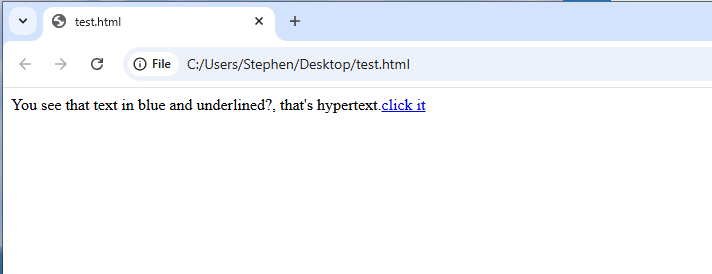 Hypertext link 'click it' that links to another page
What is markup?
Markup simply means adding extra meaning or value to a piece of text.
It’s just like when you’re reading your favorite book and you choose to highlight a piece of text using yellow color.
For you:
- the color yellow might mean something you want to apply.
- Green might mean something you don’t want to forget.
- Red might mean something you want to avoid.
Whichever color code works for you, by adding the color highlight, you’ve added extra meaning (for you) to that piece of text- you marked-up the text.
In HTML, we use tags to markup text. Don’t worry we’ll talk more on tags shortly. For now, just know that tags help us to markup a piece of text so the browser can understand (gain meaning) what the piece of text is supposed to be.
With a tag, you can tell the browser this piece of text should be
- a paragraph (like the one above this list),
- a link (like this one that links back to this page),
- a button ,
- a list like this one,
- a video or audio player and so much more.
 Just as you highlight text in your favorite book to add extra meaning to the text, so also the browser uses tags to understand exactly what a piece of text should be
A brief history on how HTML came about
It all started when some major scientists faced a serious problem. This issue was so serious that it resulted to brilliant research work been lost!. At the time, research files were stored in several computers. Sometimes the body (or person) in charge of the file might store the file in a specific format that someone else who needs the research would have to learn to use. Several computers holdling several files, but no standard way for these computers to communicate! The big guys were frustrated.
Then, a clever scientists named Tim Berners-lee (who has no relationship with the legendary Bruce Lee) had a brilliant idea. His idea was basically...
what if you could just click a word on your screen, and it would take you to a file on a completely different computer?
And that's it folks, he went ahead to invent HTML. HTML was like a supertech at the time. It provided a standard way for each document to be stored and at the same time shared across different computers. Each shared document could be accessed by just clickng a piece of text that links to the document (Hypertext)!
Why do we need HTML?
We need HTML because it provides a standard way for structuring and accessing webpages accross the world-wide-web. Just as bricks are used to structure a house, so also HTML is used to structure webpages. By means of HTML, we can tell the browser exactly what each component of the webpage should be. Today, HTML has become the standard foundation for every single webpage you can think of.
Over the years, there have been several versions of HTML up until now. The current version of HTML is the HTML Living Standard version. Earlier we used to have the specific nubmered versions like HTML2, HTML3, HTML4, and HTML5. Instead of following the trend and naming another set of updates as HTML6, the guys in charge of the specifications concluded the web is moving too fast to wait for specific set of features to be realeased at once. Instead, if an update is available and the standard browsers decide to support a new update, the update is simply added to the HTML specificiations and then you and me can make use of it. it is continously updated in realtime. This is what is called the "living standard" version of HTML. We don't have to wait for a set of features to be realeased at once.
Now that you have an understanding of what HTML is and where we are at, let's talk about the 2 main things that make up HTML- tags and attributes.
What are HTML tags?
HTML tags are special components of HTML that are used to structure a webpage. By means of tags, you can tell the browser (markup) exaclty what want it to display - a paragraph, a button, an audio player and many other things.
Every HTML tag:
- starts with a less than sign (<),
- followed by the tag name (e.g p, button, section, e.t.c),
- and then the greater than symbol (>)
For example, consider the following HTML tags below:
- The paragraph tag (<p>)
- The button tag (<button>)
- The section tag (<section>)
Also, many of the HTML tags come in pairs- an opening and a closing tag. The tags listed above are actually opening tags. The closing tags are written exactly the same way as the opeining tags but with one small differentiator - a foward slash before the tag name. Using the same set of tags as listed above, this would be their closing tags:
- The paragraph tag (</p>)
- The button tag (</button>)
- The section tag (</section>)
So, if you want to create a paragraph in HTML, you should do this:
<p>Thank you Tim Bernace Lee</p>When the browser sees this piece of text, it would understand the text 'Thank you Tim Bernace Lee' should be displayed in a paragraph.
If you want to create a button in HTML, you should do this:
<button>Buy now</button>;When the browser sees this piece of text, it would understand the text 'Buy now' should be displayed as a button.
These are just a few examples to help you see how tags are used.
HTML is very cool, you’ll love it!
Self-closing (empty) tags
Not all html tags come in pairs. These tags are called Self-closing tags. Examples of such tags are:
- Image tag (<img>) : used to add an image to the page.
- line-break (<br>) : used to add a line break so the next element (after the line-break) can start in a new line.
- input tag (<input>): used to collect user input like name, email, password, files and lots more.
When Tim Bernace Lee was creating HTML, he tried to make sure HTML mirrors the same way we write and read. Just a capital letter at the start of a sentence and a fullstop at the end of a sentence helps you tell the beginning and end of a setence, having tags in pairs would let the browser know where an element starts and ends. So any tag that is meant to hold content comes in pairs.
I promise you, i didn't go back to check if i started each new sentence with a capital letter. (I think i should start using Grammarly).
on the other hand, sometimes we simply want to start a sentence in a new line or have an image. Self-closing tags help with this. No need for holding text content, just simply insert an object or character.
What is an HTML element?
An html element is a single unit of HTML that can be displayed on the browser. It could be a pair of tags (closing and opening) having content or maybe even empty or a self-closing tag displayed on the page, both are HTML elements.
Self-closing elements are also called void elements
How to get started with HTML
You can start writing your HTML code using a simple text editor like Notepad. You can also use a more sophisticated software (IDE) like Vscode. For starters, let me show you how to create and write HTML code using a simple text editor.
How to create an HTML file using Notepad
It's very easy to create an HTML file using any text editor. You can get it done using the steps below :
I'm using a Windows pc for this steps. I believe its a very similar idea on Mac as well.
- Decide the location where you want to create the file- is it in your desktop, a new folder, an already existion folder like your documents folder, it's up to you. Just make sure to choose a location you can easily remember. For this demonstration, i'll be using my desktop.
- Right click
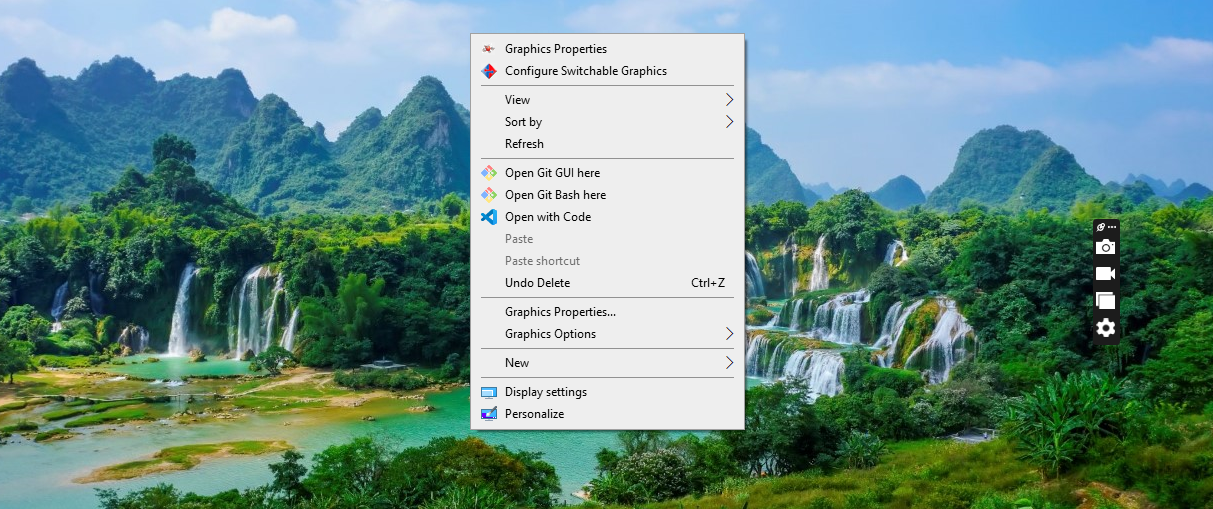 right click to get the appriopriat option to create a new texy file
 - click on the 'new' button and then click on "text document" in the sub-menu that opens up
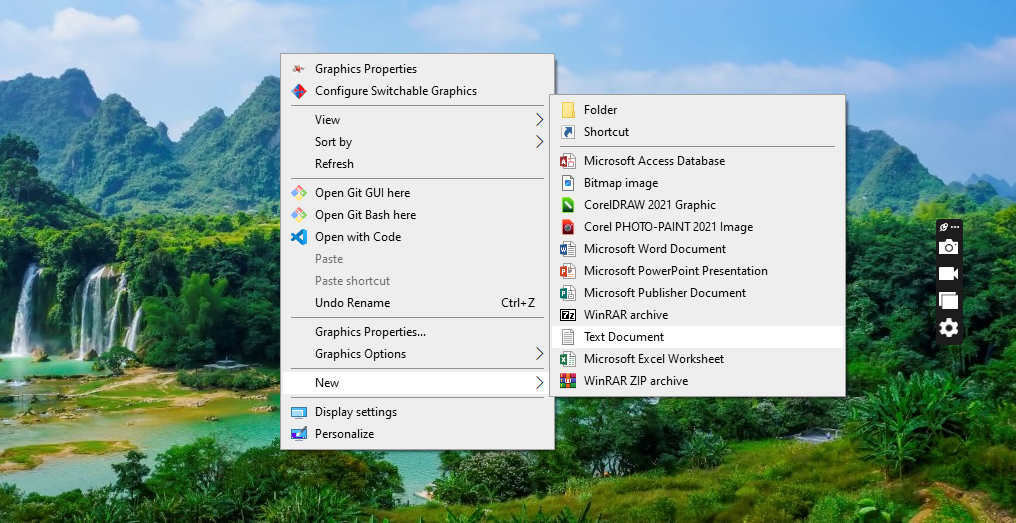 click on the 'new' button and then click on the 'text document' button in the sub-menu that appears
 - Give your text file a name
 name your just created text file. For this demonstration, i'm naming the file 'index'
 - Open the text file you just created (double click on it)
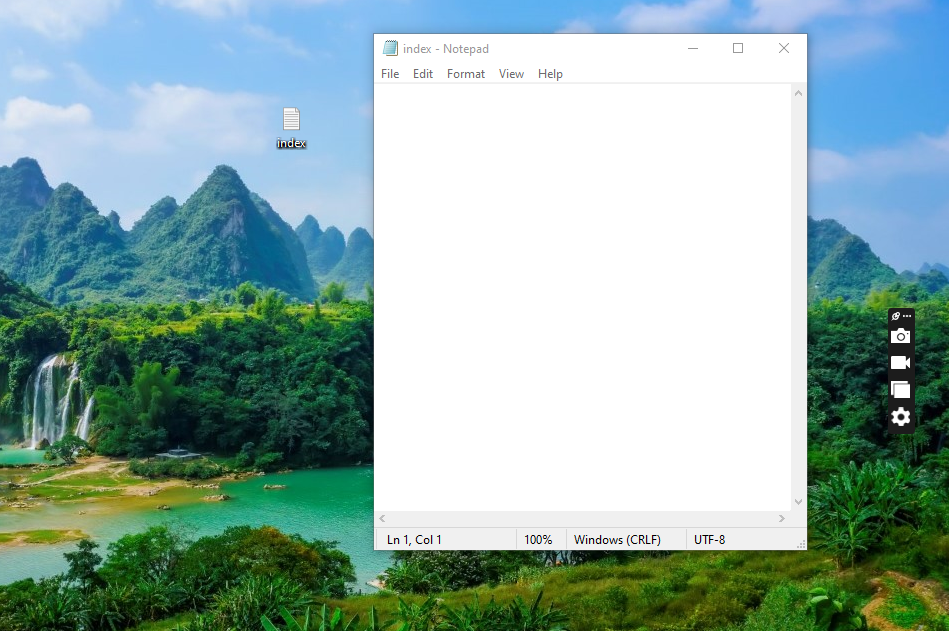 double click on the text file you just created to open it
 - click on 'file' from the menu and then click on 'save as'
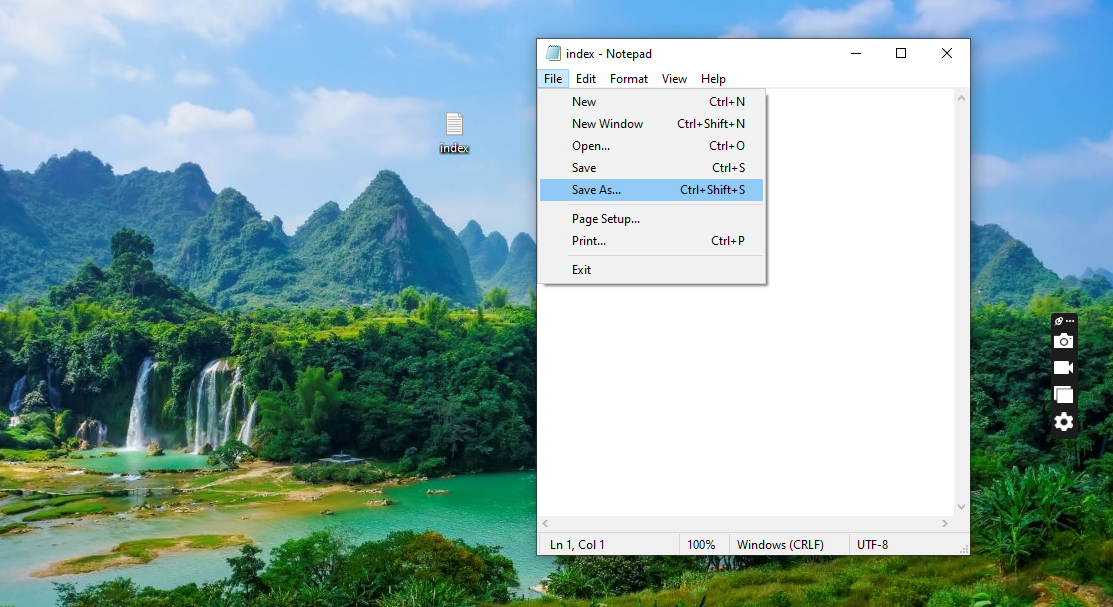 click on 'file' and then click on 'save as'
 - Add the '.html' file extension to the file name and click on 'save'
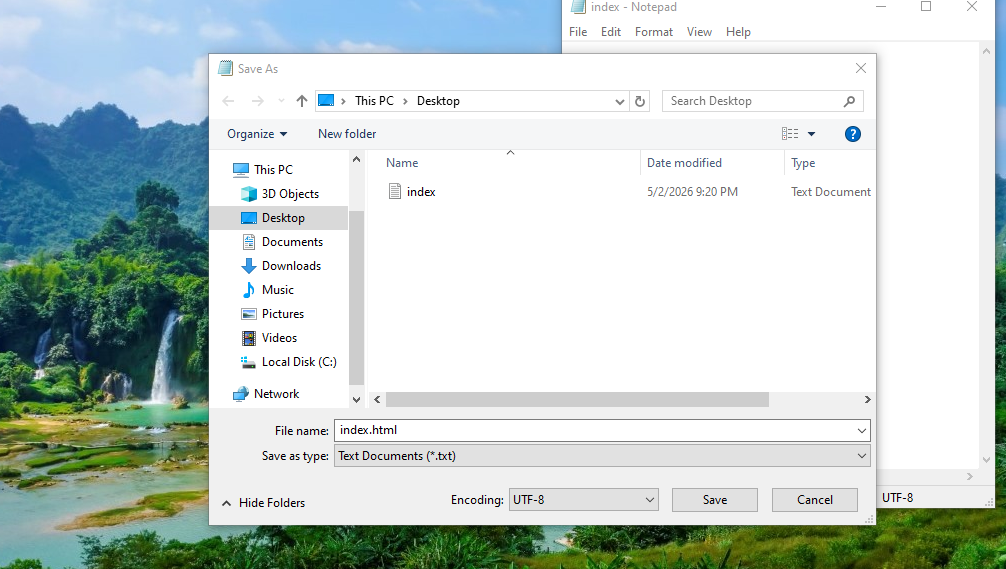 add the '.html' extension to the filename and click on 'save'
when adding the html extension to the file name, make sure to add the '.' before 'html'. The '.' is very important!. If the '.' is ommited, the computer wouldn't recognize the file as an HTML file but instead an ordinary text file.
- You should now be able to see your just created html file Right now if you open the HTML file, its going to be a blank webpage. Let's see how to add content to the page.
 The just created html file
Writing the HTML code
To add content to the HTML page...
- right-click on the just created HTML file (the one that has the .html extension)
- click on 'open with'
- select 'NotePad' (or the text editor you used)
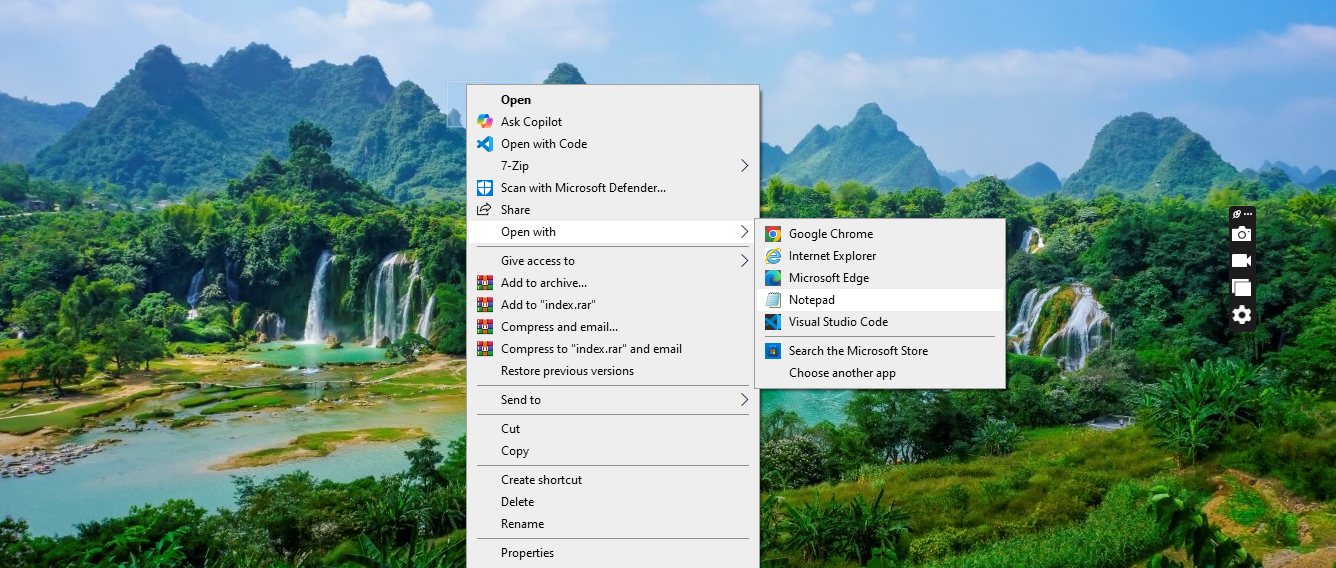 open the just created html file using Notepad
Please make sure to apply the steps above on the html file (the one that has the .html extension) that you created
Now that you have your text editor open, you can add content to the webpage by simply adding content to the text editor and saving the edits you make, and refresh the browser.
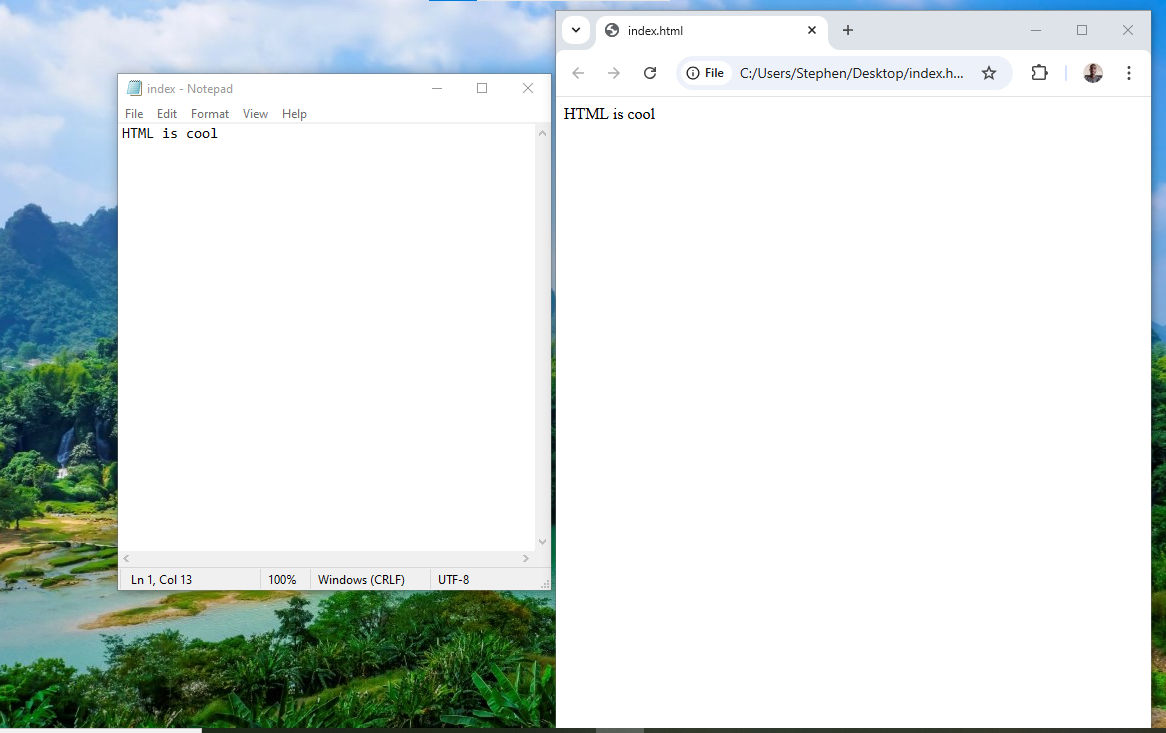 add text on the notepad document, save and refresh your browser to see the result
This is just one of the oldest methods of creating an html file. Lets see another, the one most developers use today.
Creating an HTML file using an IDE
IDE stands for Integrated Development Environment. It is a software that creates an environment for you (the developer), where you can more easily write your code. The environment is made up of different software tools put together (Integrated). These different software tools can help you with some repetitive tasks, and give you extra features to help make your coding more enjoyable.
There are so many IDEs out there. I'll recommend my personal favorite called VsCode. VsCode (Visual Studio Code) is an IDE created by Microsoft. Its free to use as well. All you have to do now is to download and install. To do so:
- Click on the link below to download Vscode from the Official website.
When you're on the site, you should see an image similar to the one below
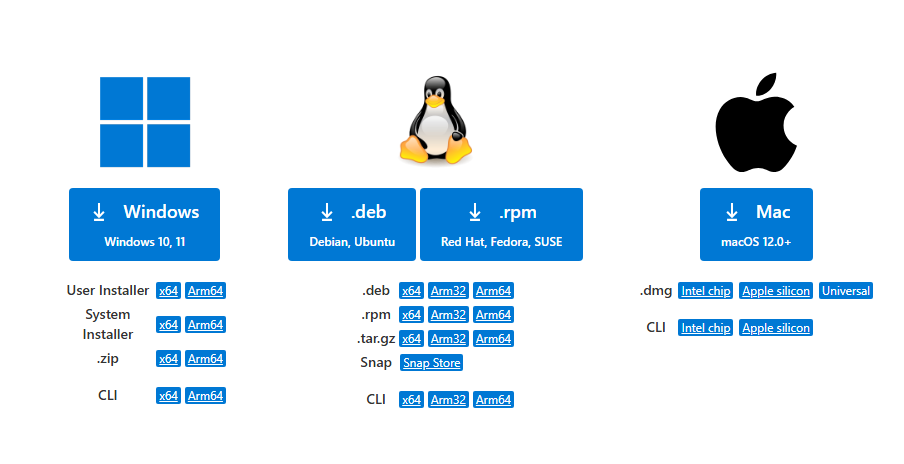 select the apropriate one for your platform
- Next, select the apropriate one for your device by clicking on the right operating system (one of the big square buttons having Windows,.deb & .rpm, and Mac respectively)
- Once the download is complete and Vscode is installed, please watch the video below to help you understand the basics of VScode.
- The video was created by Coder Coder (one of my favorite teachers on YouTube).
- You don't need to watch everything, just the first 16 mins is enough, we'll talk about the other stuffs in later lessons
- If you liked the video, please consider giving it a like, it's encouraging to video creators
I'm hoping you now have you editor setup- an IDE or a simple text editor (either works but an IDE is easier to work with), lets learn about a few elements in HTML.
HTML headings
The heading elements in HTML are used to create headings on your webpage. One unique thing about them though is that, there are different levels of heading - the main heading, subheading(s) (the one that goes under the main heading ), the sub-subheading (the one that goes under the subheading), and the chain continues until the very last heading level.
Without the heading element, your browser wouldn't understand that a piece of text (as shown in the image below) should be a heading.
This is the main heading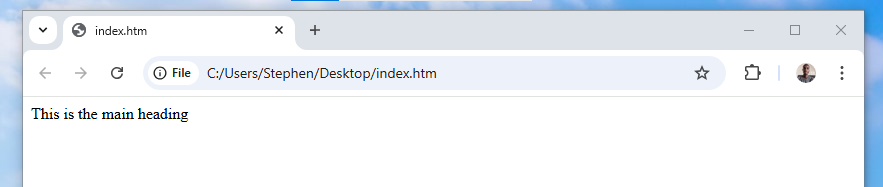 The browser displays the text as a normal piece of text
The browser just simply displays it as a piece of text.
Let's talk about the different level of heading in HTML and how to use them properly.
- There are 6 heading elements in HTML (h1, h2, h3, h4, h5, h6)
- The heading follow a hierarchy of importance where <h1> is the main, <h2> - <h6> are used to define sub-sections.
- All the heading elements come in pairs -a opening and closing tag
The h1 element
The h1 element is used to create the main heading of a page. This element has both an opening (<h1>) and closing tag (</h1>). Try it..
<h1>This is the main heading</h1>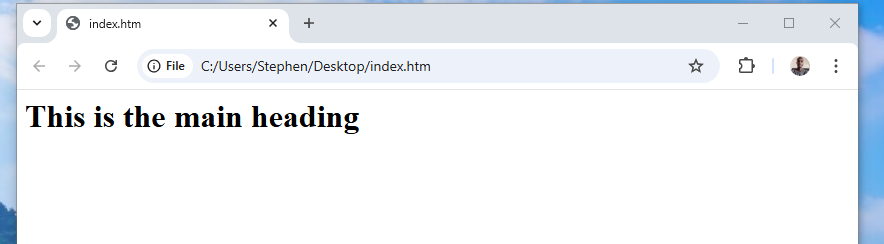 The browser displays the text as the main heading- bolder and bigger
Now, the browser knows that's the main heading and displays it as such (big and bold).
The h2 element
The h2 element is used to create a subheading that comes under the main heading of a page.
Assumining you want to write an article on HTML titled 'What is HTML?' (main heading).
One of the subheadings in your article might be 'Why do we need it?'
Because the subheading comes directly under the main-heading, the subheading should be created using the h2 element.
This shows hierarchy, in effect saying this heading is one level lower than the heading above it.
<h1>What is HTML?</h1>
<h2>Why do we need it?</h2>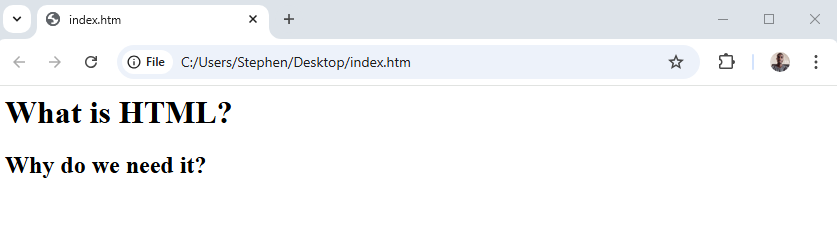 The browser sees the text 'why do we need it?' is a subheading under the main heading
Can you notice the subheading (h2 element) is smaller than the main heading? Just by mere looking at the page, their sizes makes it clear which piece of text is the main heading and which is the subheading. You can have as many subheadings as you need, it all depends on how you want to structure your webpage.
Just in case you're asking 'what about the paragraphs?', we'll add paragraphs soon, for now let's focus on the heading structure
The h3 element
Now let's say in the article, under the subheading 'why do we need it?', you want to outline two reasons. You want each of these reasons to be their own subheadings. Since the subheadings are going to exist under the h2, you should use the h3 element, not another h2 element.
<h1>What is HTML?</h1>
<h2>Why do we need it?</h2>
<h3>A Standard for structuring a webpage</h3>
<h3>Easier access to documents on the web</h3>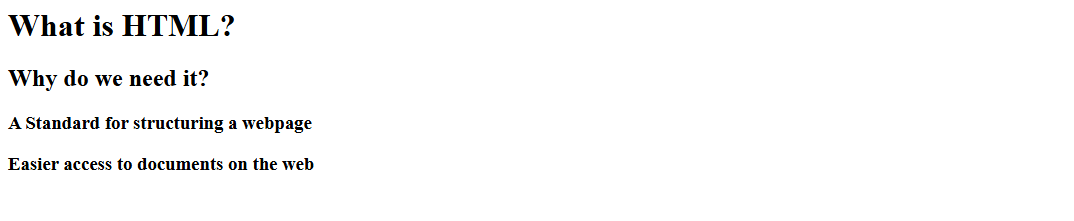 The browser sees the last two headings as headings under the h2 element
Can you notice that the h3 element is smaller than the h2 elment? Just as the size shows, the h3 element should be used as a direct subheading under the h2 element.
The principle is the same...
-
if you want to have a subheading in a section having an h3 element as it's heading, that subheading should be an h4 element.
-
if you want to have a subheading in a section having an h4 element as it's heading, that subheading should be an h5 element.
-
Finally, if you want to have a subheading in a section having an h5 element as it's heading, that subheading should be an h6 element.
You can have as many subheadings as you want, it all depends on how you want the page to be structured.
The code snippet below shows how each level of heading is displayed on the browser.
<h1>This is the main heading</h1>
<h2>This is a subheading under the previous heading</h2>
<h3>This is a subheading under the previous heading</h3>
<h4>This is a subheading under the previous heading</h4>
<h5>This is a subheading under the previous heading</h5>
<h6>This is a subheading under the previous heading</h6>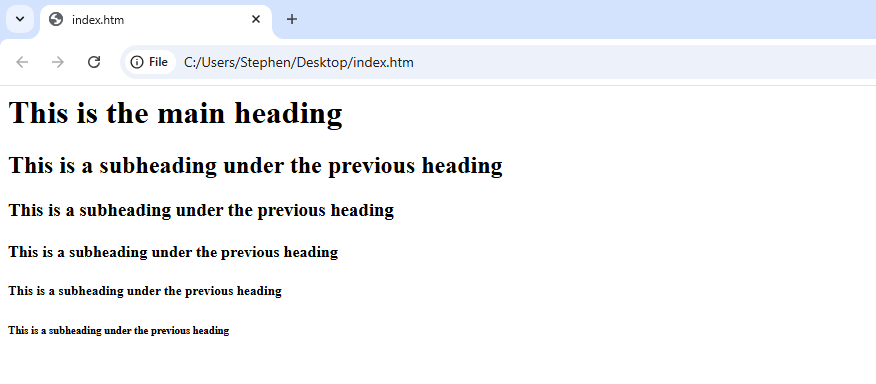 h1 is the main heading, and every other heading is a subheading to the heading level above it
When using any of the heading elements, make sure to follow the proper hierarchy structure. Don't use a heading tag simply because of the size, use the proper heading element at each section.
The paragraph element
The paragraph element is used to create paragraphs in your webpage. As with many other elements, the paragraph element comes with an opening (<p>) and a closing tag (</p>).
The opening tag shows where the paragraph starts, the closing tag shows where the paragraph ends.
The code snippet below shows how to use the paragraph element:
<p>This is a paragraph. HTML makes it so easy to create one</p> A paragraph in HTML
Using the paragraph element, you can structure text across your webpage into readable sizes. Your paragraph can contain a single sentence as in the code sample above, or it can contain as many sentences as you want (as in the example below).
<h1>Twinkle Twinkle Little Start</h1>
<p>Twinkle Twinkle little star,
How i wonder what you are,
Up above the world so high,
Like a diamond in the sky,
Twinkle Twinkle little star,
How i wonder what you are
<p>
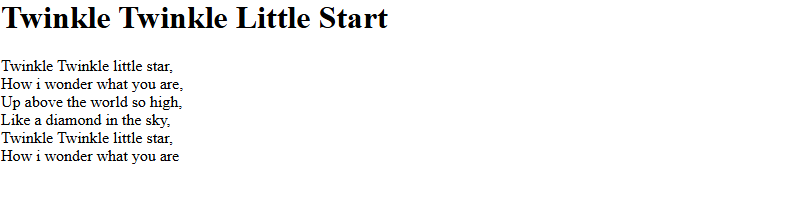 The poem is displayed in the same line
You can also have as much paragraphs as you need in your webpage, it all depends on how you want the text in the webpage to be structured.
In the output, the entire text in the paragraph did not go in their own seperate line as written in the code.
In the code, each line of the poem is written in a new line, but in the output, its all put together.
This is a problem with the paragraph element called the Poem problem.
By default, HTML paragraph element ignores, extra spaces and line breakes ( which are very common in poems). So even if you add them in your code (as done in the example above), the browser is going to ignore them.
So how is this problem solved?
Using the <br> Tag
One way is to use the Line Break element (<br>). You can simply add the line break before any sentence you want to start in a new line.
<h1>Twinkle Twinkle Little Start</h1>
<p>Twinkle Twinkle little star,<br>
How i wonder what you are,<br>
Up above the world so high,<br>
Like a diamond in the sky,<br>
Twinkle Twinkle little star,<br>
How i wonder what you are
<p>
The line-break tag (<br>) is a self-closing tag. It doesn't need a partner
HTML Attributes
HTML attributes are used to provide extra information about a particluar element. In HTML, some tags require you to add content in between them (like the tags we've considered so far). Others like the self-closing tags don't require content. Added to that, some of these tags require extra information before they can be displayed on the page. That extra information is called an attribute. The attributes are added in the opening tag of the element after the name (or initial) of the tag. The image below shows the structure.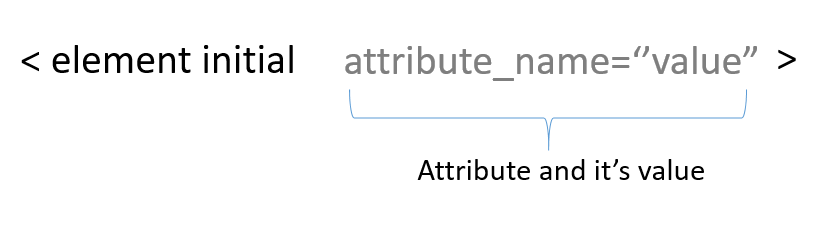 Each attribute has a name and a value
Attributes are similar to the attribute you already know. For example, what are the attributes of a car?, a car has 4 tyres, it has doors, it has a specific color. So too HTML elements have attributes. Some elements, like the Image element, have a coumpulsory attribute that must be set for the an image to be displayed on the page. An image has a height, a width and a source (the location the image is stored). Let's see how to use the Image element in HTML.
The <img> element
The image element is used to add images to the page. This is a self closing element. To use this element, you have to also provide the coumpulsory attribute src (short for source). Other attributes like height and width are not compulsory but they're helpul.
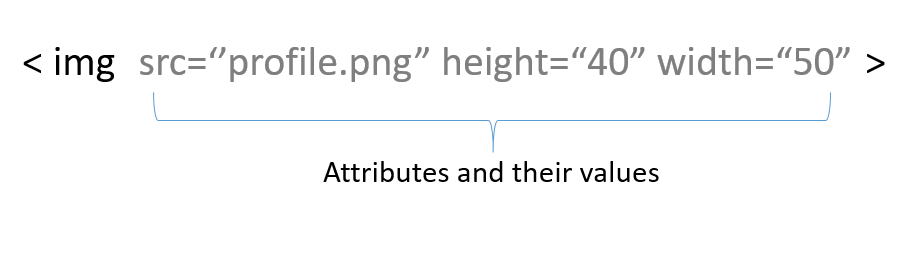 How to add images using the img element
- When using the image element, a common mistake is to just place the name of the image without its type (e.g png,jpg, e.t.c). Please make sure to add the image type also.
- Please also make sure to reference the location of the image file properly. You can use the name of the image file (along with the type) if the image is in the same location as the HTML file
So there you have it. The purpose of this post is to give you a fine intro into the world of HTML. I intend to update this post as the need arises. Until next time, bye for now.