

Now, that you know what HTML is and why we need it, this tutorial, shows how to create an HTML file using a text editor like notepad, and how to display it on your browser
How to create an HTML file using a text editor
It's very easy to create an HTML file. You can even do so using any text editor- it's that easy. You can get it done using the steps below
- Decide the location where you want to create the file- is it in your desktop, a new folder, an already existion folder like your documents folder, it's up to you. Just make sure to choose a location you can easily remember. For this demonstration, i'll be using my desktop.
- Right click
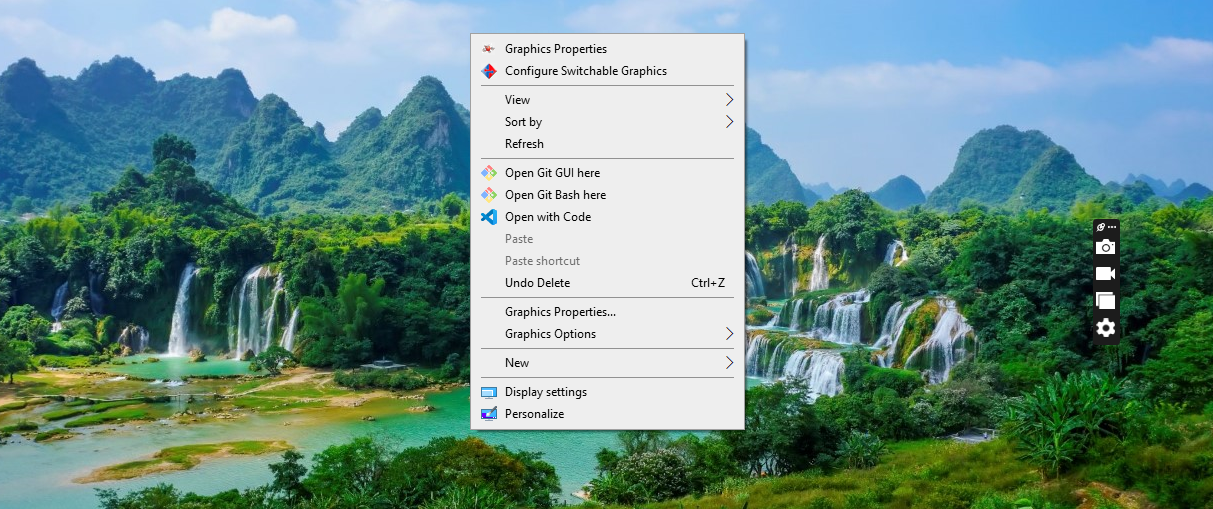 right click to get the appriopriat option to create a new texy file
 - click on the 'new' button and then click on "text document" in the sub-menu that opens up
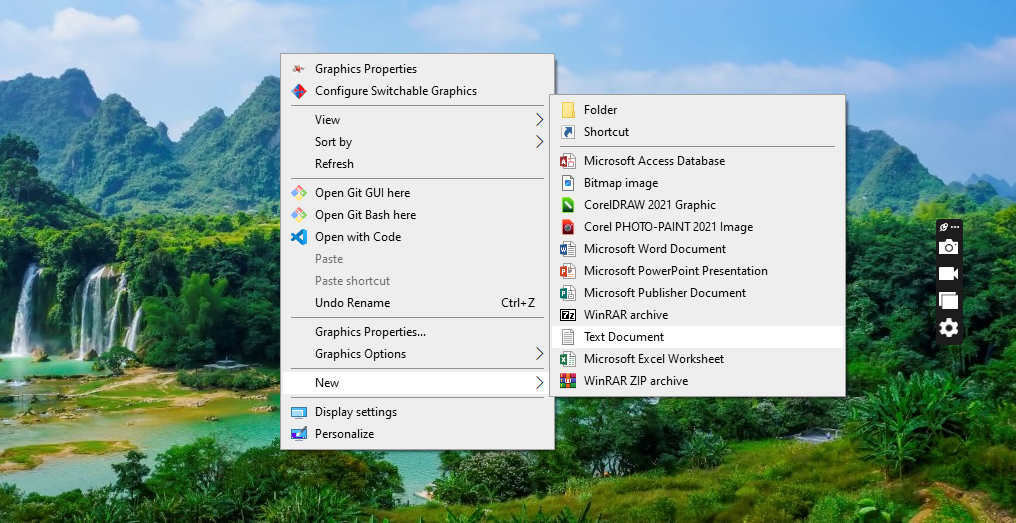 click on the 'new' button and then click on the 'text document' button in the sub-menu that appears
 - Give your text file a name
 name your just created text file. For this demonstration, i'm naming the file 'index'
 - Open the text file you just created (double click on it)
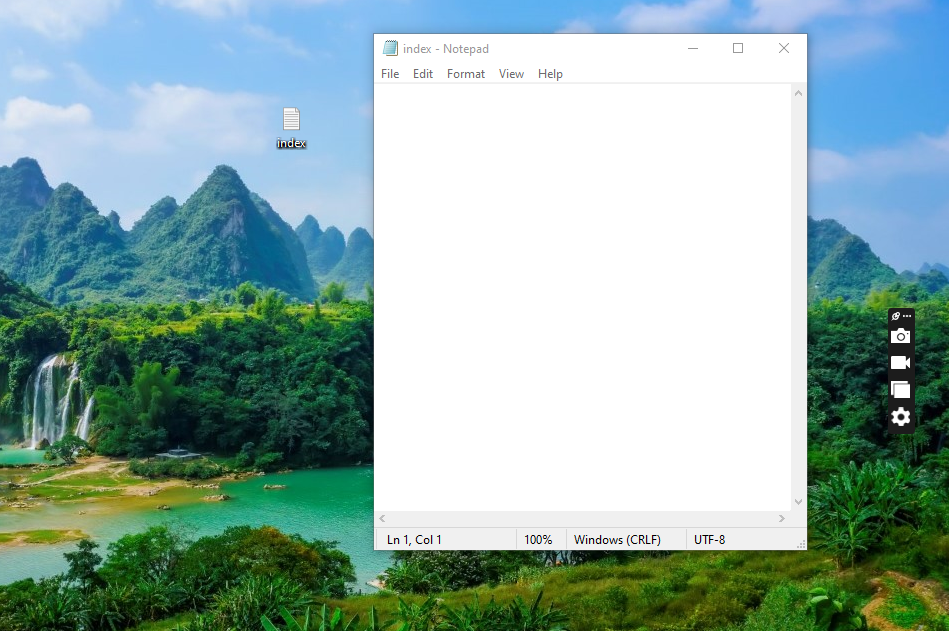 double click on the text file you just created to open it
 - click on 'file' from the menu and then click on 'save as'
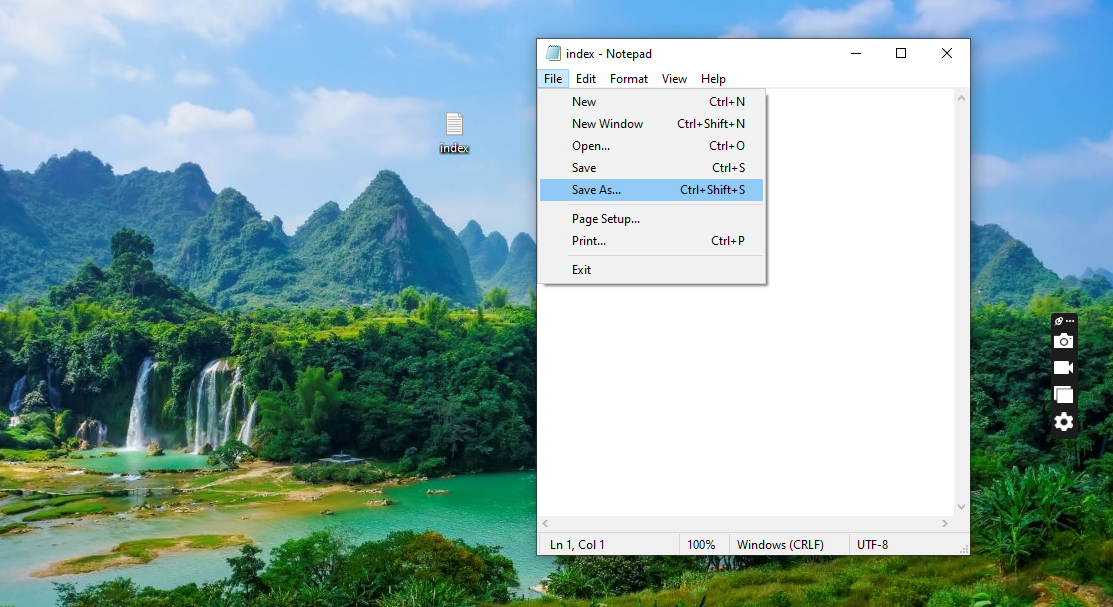 click on 'file' and then click on 'save as'
 - Add the '.html' file extension to the file name and click on 'save'
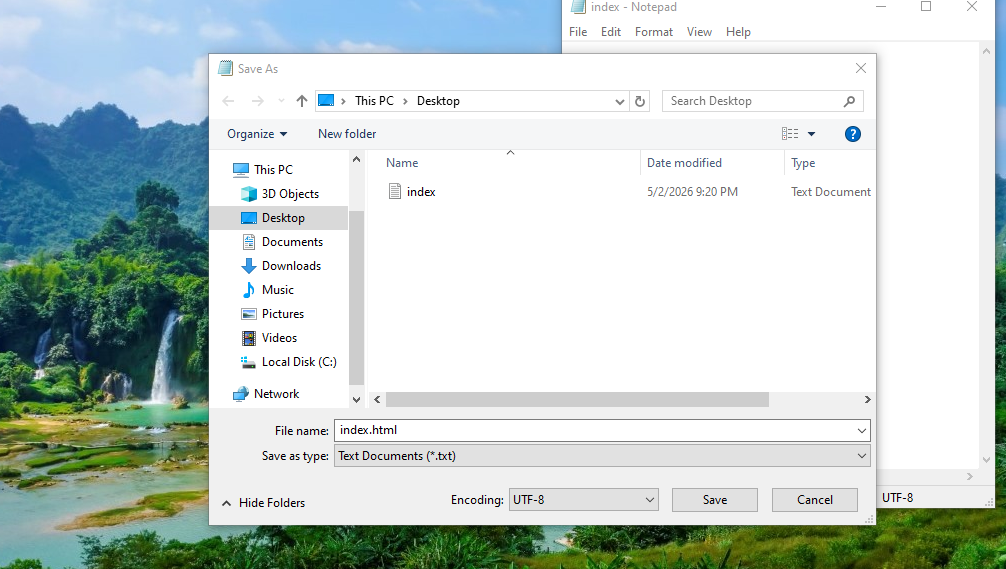 add the '.html' extension to the filename and click on 'save'
when adding the html extension to the file name, make sure to add the '.' before 'html'. The '.' is very important!. If the '.' is ommited, the computer wouldn't recognize the file as an HTML file but instead an ordinary text file.
- You should now be able to see your just created html file
 The just created html file
If you want to, you can go ahead to delete the inital txt (text) file that we used in creating the HTML document. What we were really after is the html document not the txt document.
With that you've created an HTML document! You can open the HTML document you just created by double clicking on it. When you do, you'll notice the file opens your browser- but the page is empty (blank). That's because we've not added any html content to the page yet. let's do that next
Adding HTML content to the page
To add content to the HTML page...
- right-click on the just created HTML file
- click on 'open with'
- select 'NotePad'
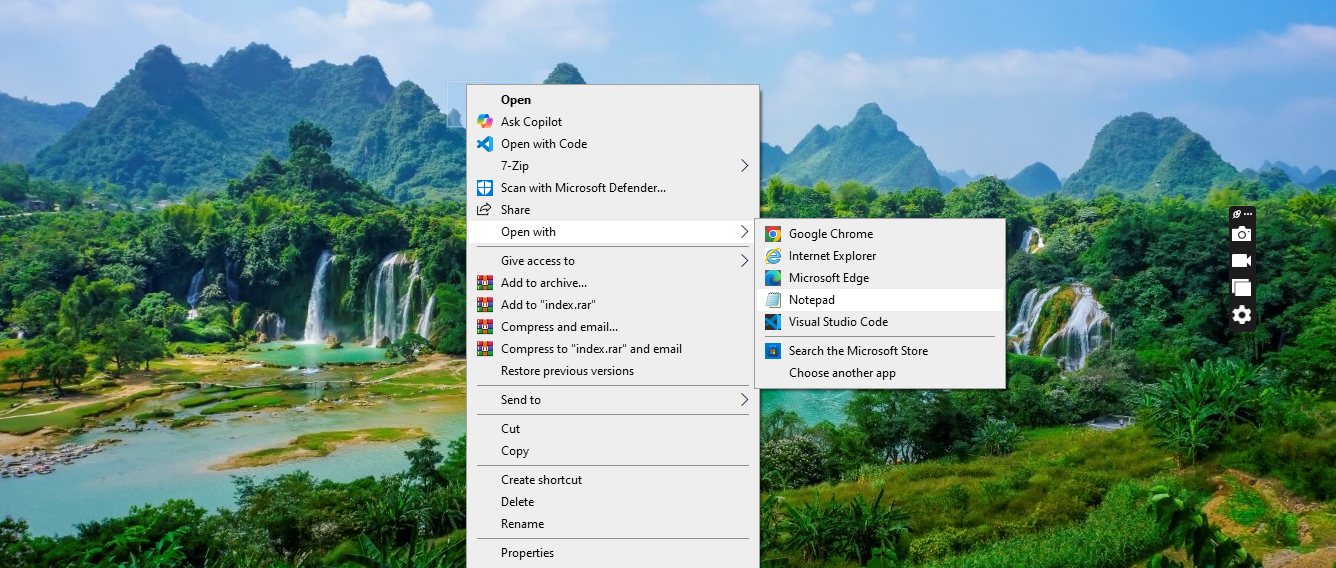 open the just created html file using Notepad
Please make sure to apply the steps above on the html file that you created
Now that you have your text editor open, you can add content to the webpage by simply adding content to the notepad and saving the edits you make.
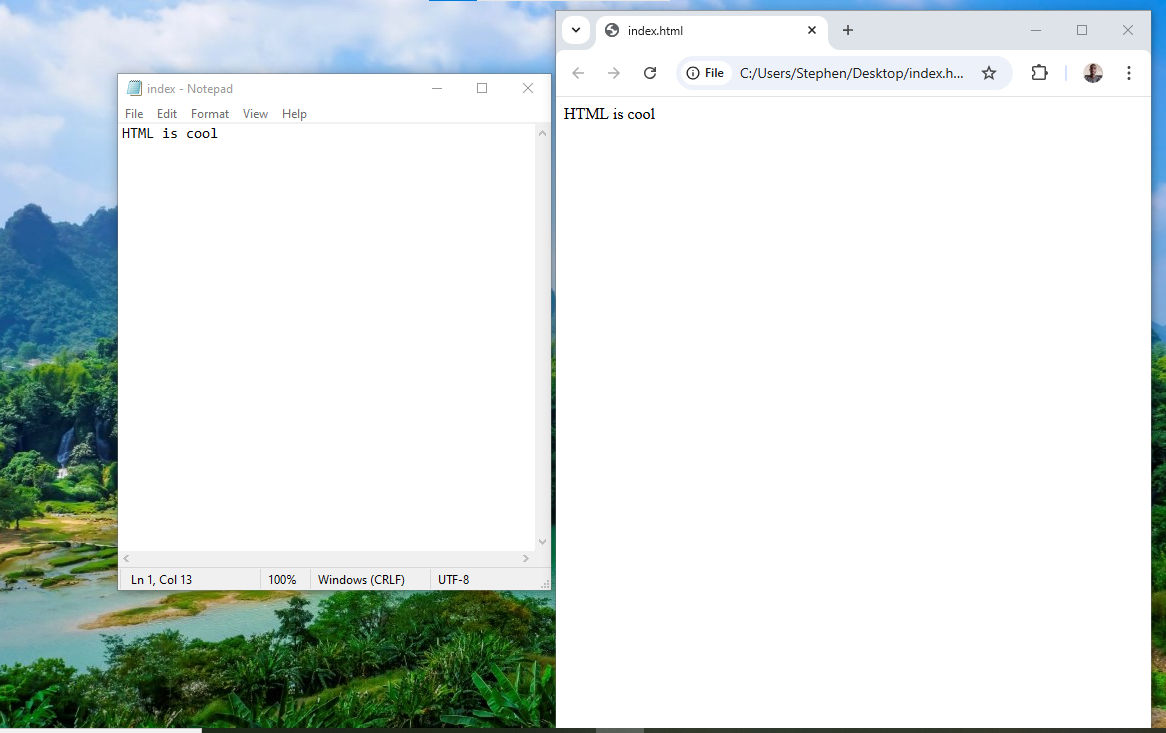 add text on the notepad document, save and refresh your browser to see the result
In the next lessons you create a new HTML file or you can use the html file you just created to write any html code and test it yourself in your own browser. As you do, please don't forget to save your edits on notepad and refresh your browser to see the changes
With that, I'm hoping you now know how to create an HTML document (webpage) using a txt (text file) and how to add content to the webpage (remember to save your edits, then refresh your browser). There's a challenge though. So far, the browser can understand that we added text content, next we'll see how to use tags within the webpage.