

By the end of this lesson, you’ll understand what an IDE is and how to get started using one of the most common IDEs available.
IDE stands for Integrated Development Environment. It is a software that creates an environment for you (the developer), where you can more easily write your code. The environment is made up of different software tools put together (Integrated). These different software tools can help you with some repetitive tasks, and give you extra features to help make your coding more enjoyable.
If you followed this tutorial from the earlier lessons, you would notice that we talked about how to create an html file. In that lesson, we used a .txt file (text file) and converted that into an HTML file. To write your HTML codes, you'll need to
- Open the html file with a text editor (e.g notepad)
- Edit the just opened file (in the text editor)
- Save your changes
- refresh your browser
...good times right?
 You've done great!
Most likely, besides looking for the charcters on your keyboard, other challanges you faced with that approach might include:
- making sure you type all the symbols (less than, and greater than) correctly
- making sure your tags are properly closed
- worrying about spacing and indentation to make your code neat...
- ...and maybe several others
 Let's make things easier
Using an IDE will solve all these problems and more.
An IDE would
- autocomplete your code so you dont have to type every single character
- underlines specific areas in your code in case of an error somewhere
- add spacing and indentation automatically to make your work neat and easy to read
- and lots more...
In case you wondering why we didn't start using an IDE earlier, it's because i believe using an IDE later on would help you better see and appreciate the benefits it offers.
Are you ready to start using an IDE?
Which IDE should you use?
There are so many IDEs out there. I'll recommend my personal favorite called VsCode. VsCode (Visula Studio Code) is an IDE created by Microsoft. Its free to use as well. All you have to do now is to download and install. To do so:
- Click on the link below to download Vscode from the Official website.
When you're on the site, you should see an image similar to the one below
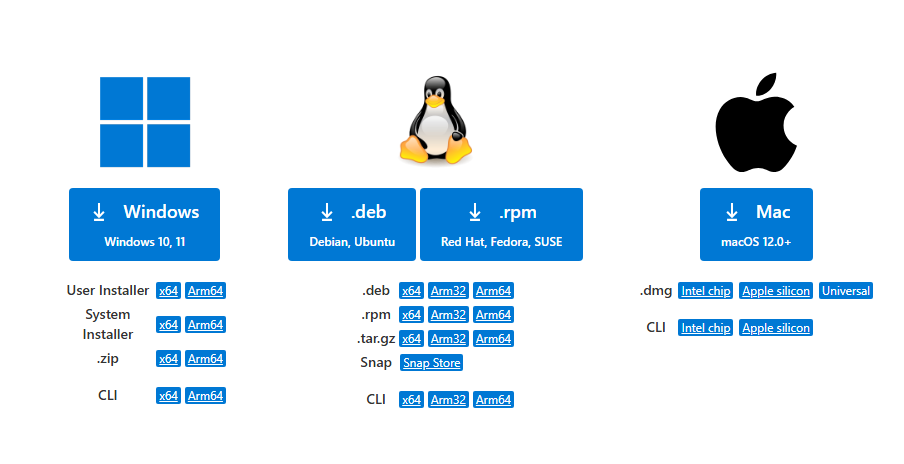 select the apropriate one for your platform
- Next, select the apropriate one for your device by clicking on the right operating system (one of the big square buttons having Windows,.deb & .rpm, and Mac respectively)
- Once the download is complete and Vscode is installed, please watch the video below to help you understand the basics of VScode.
- The video was created by Coder Coder (one of my favorite teachers on YouTube).
- You don't need to watch everything, just the first 16 mins is enough, we'll talk about the other stuffs in later lessons
- If you liked the video, please consider giving it a like, it's encouraging to video creators